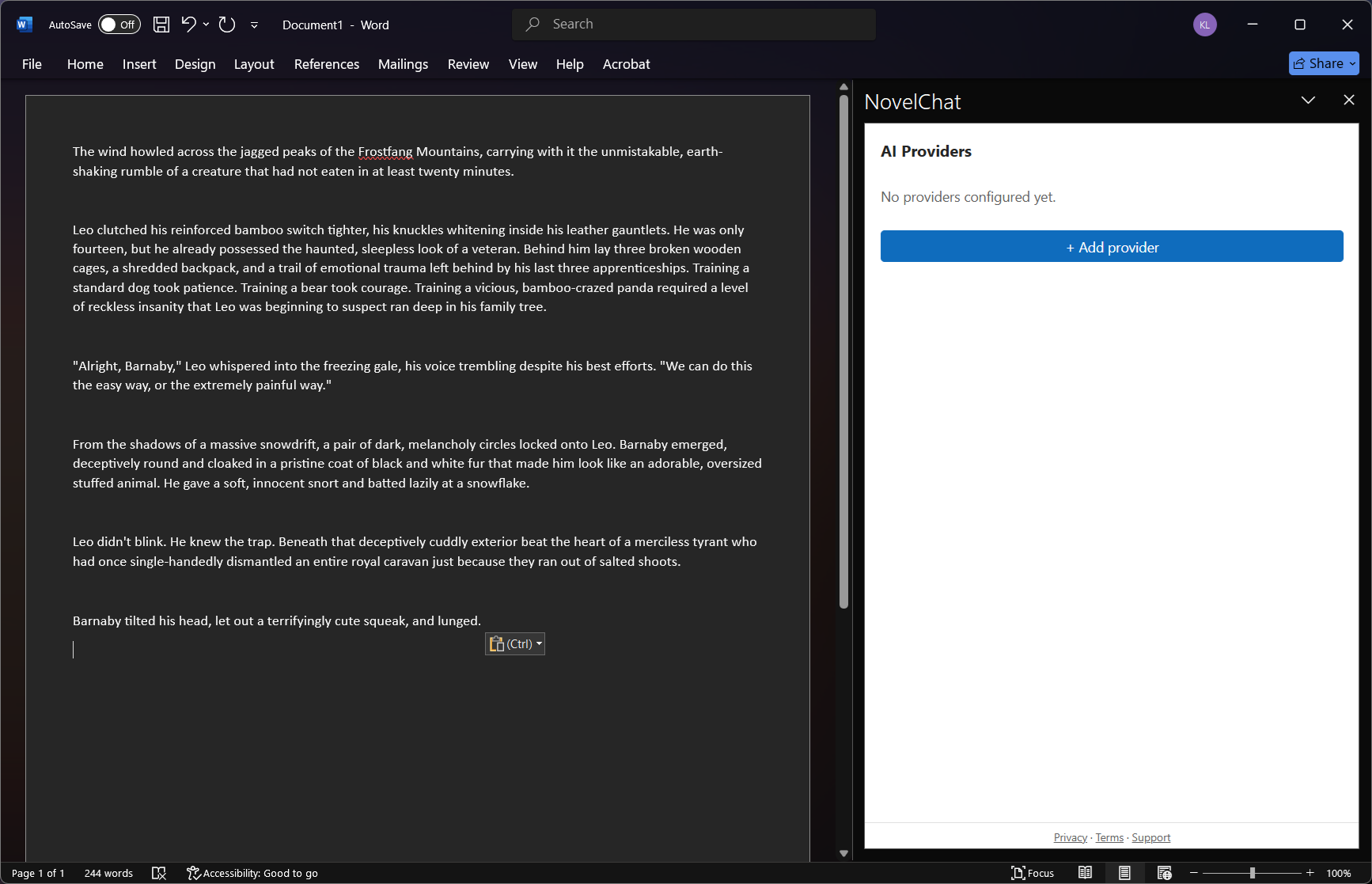
Open NovelChat's task pane. On the Home tab in Word, click "Show Task Pane." The
pane is empty at first and prompts you to add a provider.
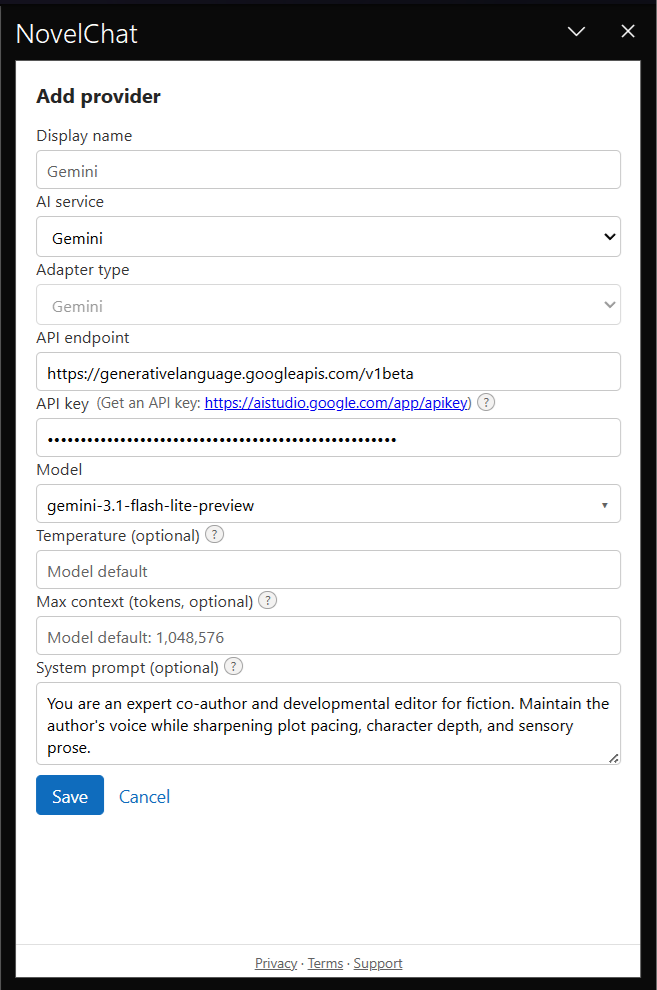
Click "+ Add provider" and complete the form: name, service, and API key. If you
do not have an API key, Google AI Studio provides a free key for Gemini's lower-tier
preview models. The "Get an API key" link next to the API key field opens that page
directly.
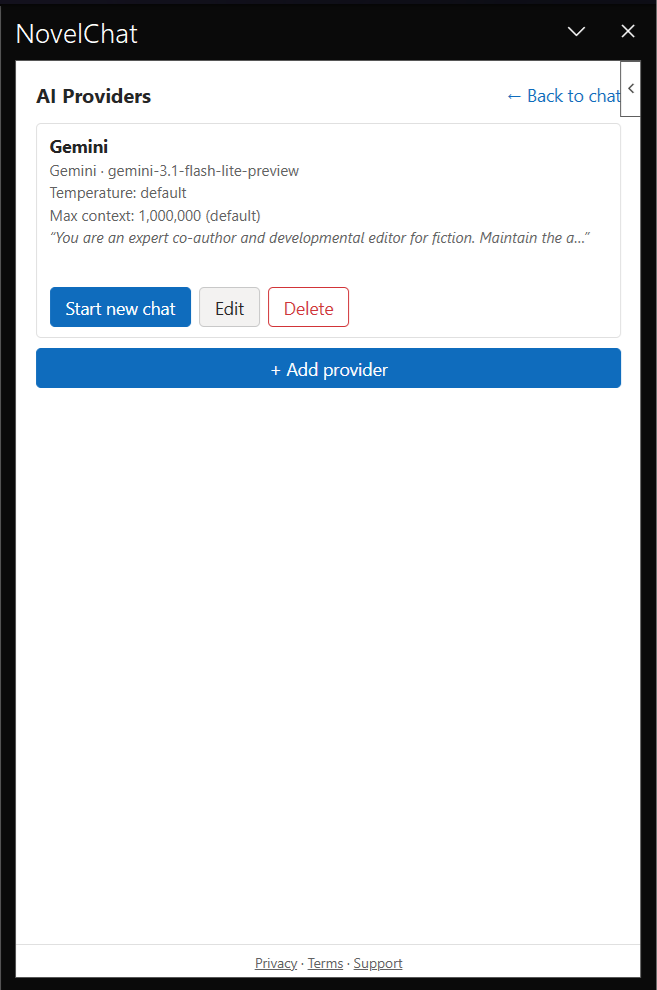
After saving, the provider list shows the new provider. Click "Start new chat"
next to it.
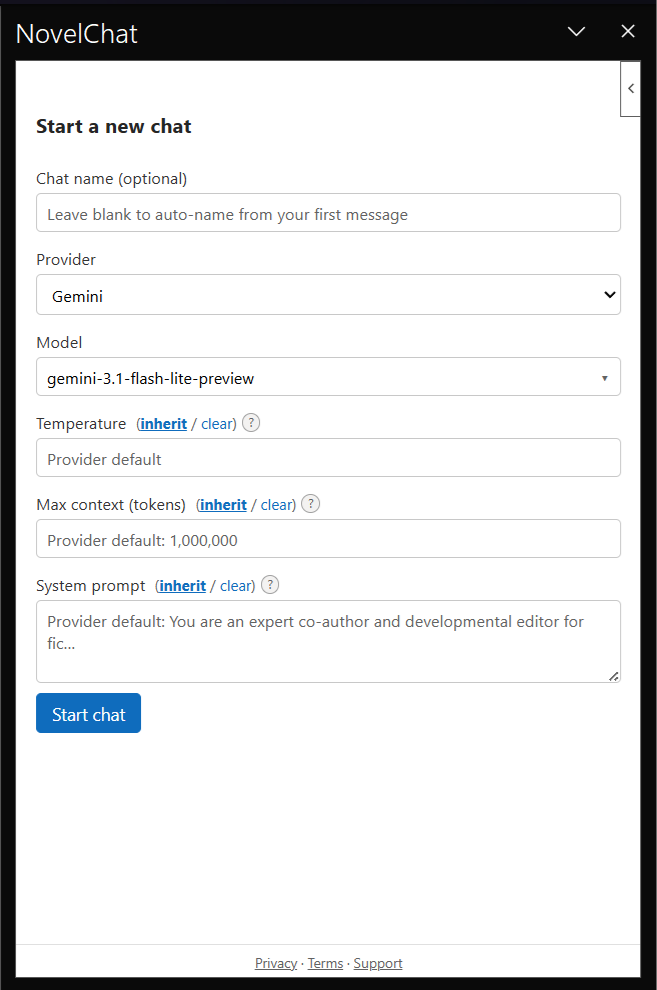
Confirm the chat settings. The defaults inherited from the provider are sufficient
to start. Click "Start chat."
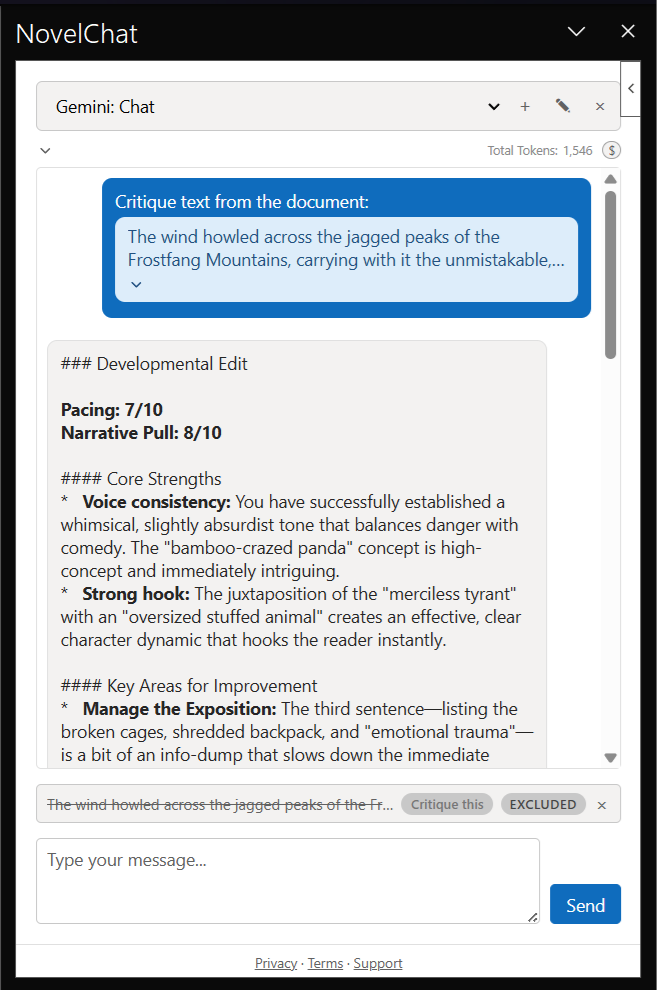
Type a message and send it, or select text in the document first so it is
included in the message.
Why doesn't NovelChat insert AI suggestions directly into my document?
This is a deliberate design choice. NovelChat's suggestions and critiques appear in
the chat panel only. Deciding what to change in your document, and making that change,
stays a manual step you take yourself. NovelChat is built to give writers feedback and
ideas, not to generate or manage the story on their behalf. Keeping that boundary in
place is meant to keep you as the author of your own work.
What's an API key, and where do I get one?
An API key is a private credential issued by your AI provider (OpenAI, Anthropic,
Google, or a compatible service) to access their service programmatically, similar to a
password for applications like NovelChat. Create an account directly with the provider
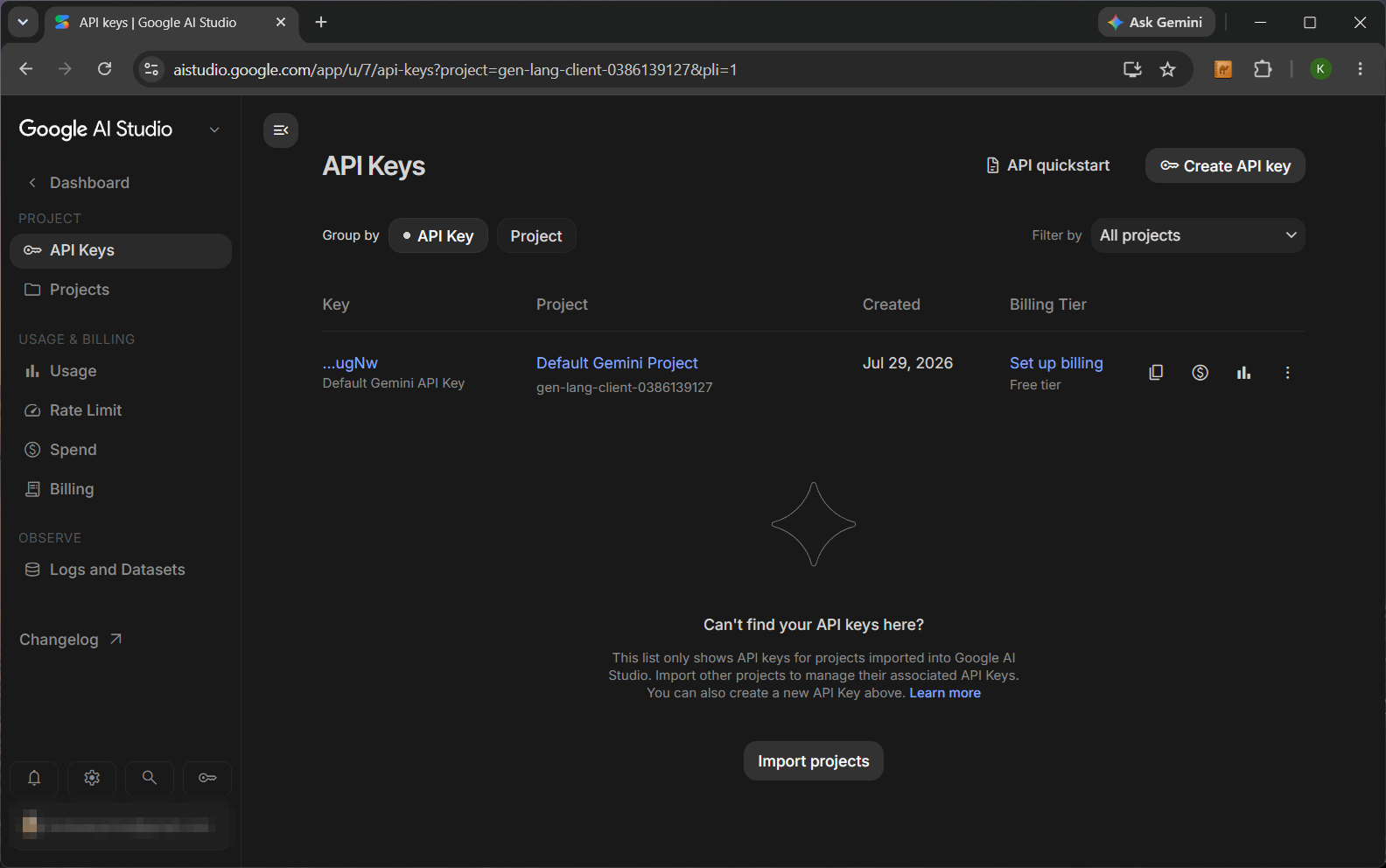
and generate a key from their website. NovelChat does not issue or sell API keys. When
adding a provider in NovelChat, the "Get an API key" link next to that field opens the
correct page for the selected provider. The example below shows this page for Google
Gemini, which currently offers a free API key for its lower-tier preview models.
Why am I being charged by [my AI provider]? I thought NovelChat was free.
NovelChat does not charge for usage. Each message sent through NovelChat is a
request to the configured AI provider, billed to your own account under that
provider's pricing. NovelChat has no visibility into or control over these charges.
Check your provider's billing dashboard for exact costs and its pricing page for
current rates.
Is my data private? Where is it stored?
Your API keys, chat history, and settings are stored only on your own computer.
NovelChat has no server. After a message is sent, it goes directly to the configured AI
provider. Handling of that data from that point on is governed by the AI provider's
own privacy policy, not NovelChat's. Review your provider's policy for details. See the
Privacy Policy for full details.
The add-in isn't loading / I see a certificate warning.
Close Word completely, not just the task pane, and reopen it. If a certificate
warning appears, confirm that the installation link in use is the correct, current
NovelChat link rather than an outdated or internal one. Contact support if this is
unclear.
Can I use NovelChat with more than one AI provider at once?
Yes. Add as many providers as needed. Each chat uses one provider. Multiple chats
can be open at once, each using a different provider if desired.
What is a Story Bible, and how do I use it?
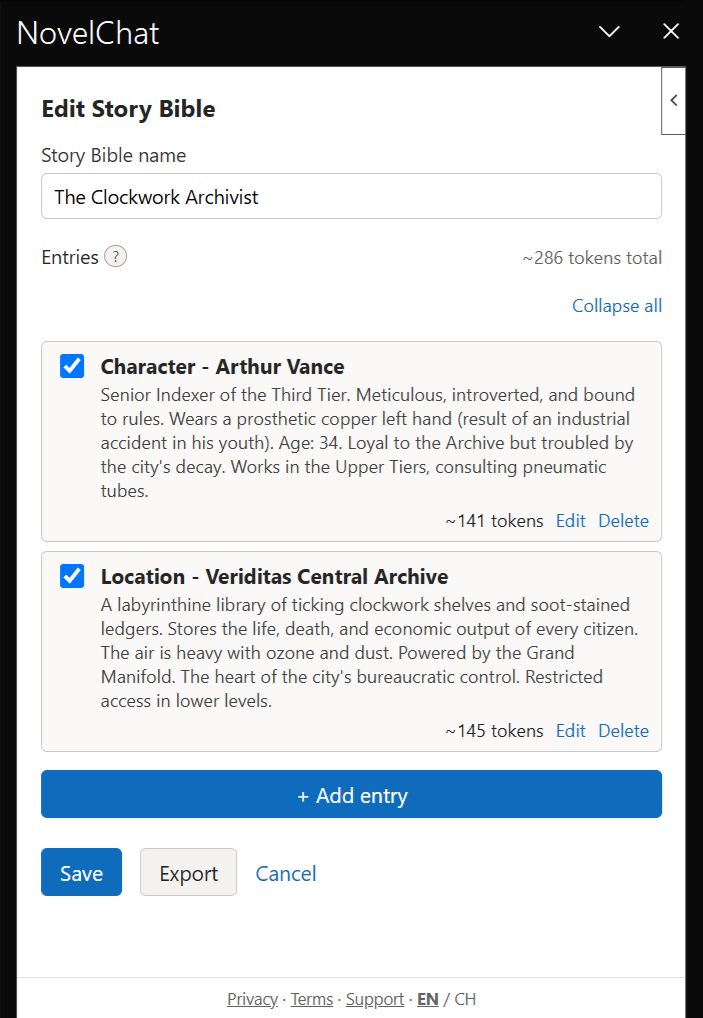
A Story Bible stores lasting facts about your story, such as characters, locations,
and plot points, so you do not have to repeat them in every message. Create one from
the Story Bible screen, or directly from a chat's Story Bible field, then add entries
with a short title and the fact itself. Bind a Story Bible to a chat, and NovelChat
automatically includes every checked entry as context for that chat, keeping the AI's
replies consistent with what you have already established.
Can I customize the Critique prompt?
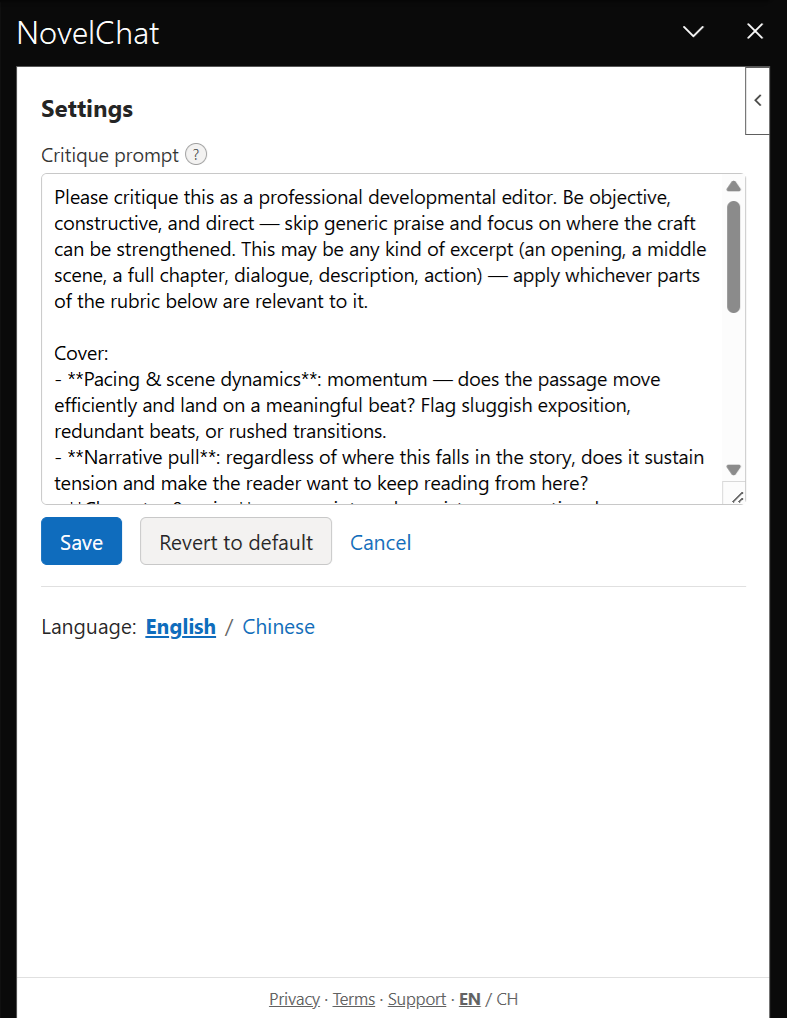
Yes. "Critique this" sends a built-in instruction asking the AI to review your
selected text as a developmental editor. To change the wording, open Settings from the
gear icon in the chat screen, edit the Critique prompt field, and click Save. Clearing
the field and saving resets it to a short built-in fallback rather than leaving it
empty, so "Critique this" always has something to send. Click "Revert to default" to
restore the original wording at any time.
Still stuck?
Email novelchat@digitalcube.com with a
description of what you were trying to do, what happened instead, and a screenshot if
available.